Home smart lighting systems: Zigbee vs Wi-Fi latency
When you tap a wall switch or speak a voice command, your smart bulb should respond in less time than it takes to blink.
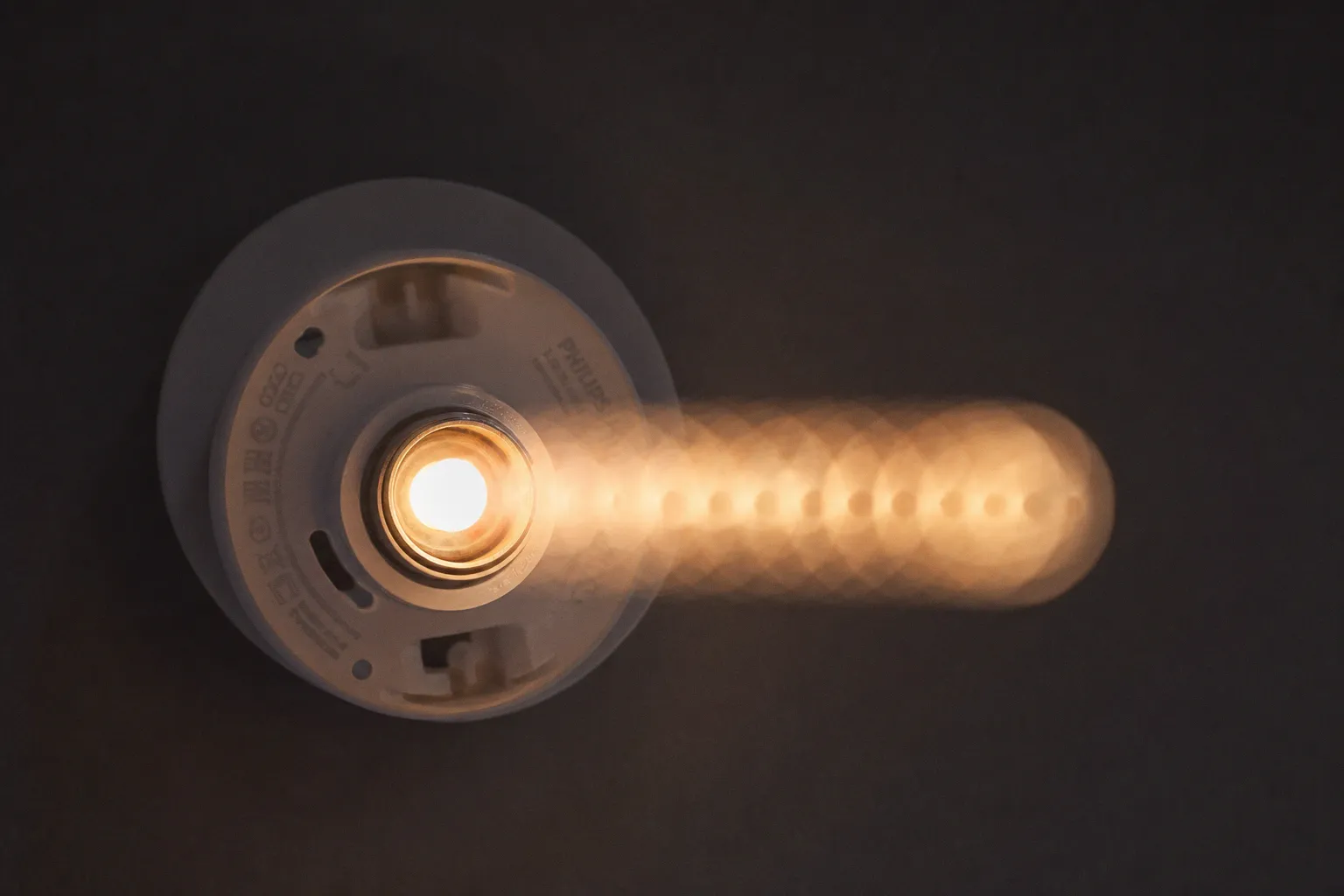
Home Smart Lighting Systems: Zigbee vs Wi-Fi Latency
Choosing between them is the first architectural decision you will make in any home smart lighting systems deployment. We will map both protocols against the criteria that actually matter at the wall switch, then walk through the configuration steps that determine whether you get sub-100 millisecond response or the sluggish behavior that pushes people back to dumb bulbs.
"The decision is not which protocol is faster in a lab. It is which one holds its latency when your house is full of devices."
The architecture of command: how Zigbee mesh networking functions
Zigbee operates on the IEEE 802.15.4 standard, and the structural detail that matters most for response time is its mesh topology. When you issue a command to a Zigbee bulb, the signal does not travel directly from your hub to that bulb in a single hop. It travels from the hub to the nearest powered Zigbee device, then to the next, and so on, with every mains-powered node acting as a repeater. The route is dynamic. If one bulb is unplugged or temporarily unreachable, the signal reroutes around it through other nodes.
For latency, the practical result is that the average hop count stays low across a typical home because the mesh densifies as you add fixtures. You will need mains-powered devices in the network — bulbs, smart plugs, dedicated repeaters — to keep the mesh healthy. Battery-powered sensors do not repeat. A common configuration mistake is building a mesh almost entirely out of battery door sensors: the signal leaves the hub, hits one dead-end sensor, and stops.
Zigbee's data rate is 250 kbps, which sounds modest but is more than sufficient for lighting commands. A "turn on at 40% brightness" instruction is a tiny payload, and bandwidth is not the bottleneck. The bottleneck in lighting is protocol overhead and the number of network operations, not raw throughput.
Wi-Fi smart bulbs connect directly to your router on the 2.4 GHz band. Each bulb is a discrete client on your wireless network, holding its own DHCP lease, doing its own handshake, and pulling its own keep-alive traffic. There is no mesh layer underneath. The router is the single point through which every command and every status update passes.
Wi-Fi congestion and the 2.4GHz bottleneck in smart homes
The 2.4 GHz band is shared with Bluetooth devices, microwave ovens, neighboring Wi-Fi networks, and a long list of household electronics. Zigbee and Wi-Fi both operate in this band, but they coexist differently. Zigbee uses 802.15.4 channels that overlap but are narrower than Wi-Fi channels, and the mesh spreads transmissions across nodes in a way that distributes load. Wi-Fi bulbs are not distributed; they all hit the same access point.
A practical threshold documented across multiple independent tests: once you exceed roughly 20 to 30 Wi-Fi smart bulbs on a single access point, latency and stability begin to degrade noticeably. You will see it first as delayed response when several lights are commanded simultaneously — a scene activation that lights up room by room rather than all at once. Modern Wi-Fi 6 and Wi-Fi 6E routers handle higher device density better than older standards, but they do not eliminate the architectural issue. Each bulb is still a separate IP client doing background chatter.
What to check if Wi-Fi bulbs become sluggish:
1. Confirm all bulbs are on the 2.4 GHz SSID, not the 5 GHz band.
2. Disable band steering if your router is forcing them to a less stable channel.
3. Map the number of active clients on the access point using your router's admin panel.
4. Check for channel overlap with neighbors using a Wi-Fi analyzer.
5. Verify no more than 25 to 30 bulbs are on a single AP before segmenting them.
We can bypass the congestion by switching the affected subset to Zigbee rather than removing devices, but only if you already have a hub provisioned.
Quantifying latency: why Zigbee consistently hits sub-100ms speeds
Zigbee command latency is typically under 100 milliseconds for direct execution, and this number is consistent because the protocol is purpose-built for low-bandwidth, low-latency control traffic. The 802.15.4 physical layer is designed for short, infrequent transmissions, and the mesh keeps hop counts low. In a healthy mesh of 30 to 50 devices, end-to-end latency from command to light output generally lands between 30 and 80 milliseconds.
Wi-Fi latency fluctuates. In a clean 2.4 GHz environment with few clients, a Wi-Fi bulb can respond in 50 to 100 milliseconds. Add 15 other Wi-Fi clients, a microwave running, and a neighboring access point on the same channel, and that same bulb's response can stretch to 300 milliseconds or more, occasionally into the half-second range where humans begin to perceive the lag.
Zigbee's median latency is stable; Wi-Fi's median latency is a function of the network it lives on. That distinction is what separates a system that "works" from one that "works most of the time."
The key figure to keep in mind is not a single benchmark. It is the variance. A 60-millisecond response that never changes will always feel snappier than a response that averages 80 milliseconds but occasionally spikes to 400.
Scalability and network stability in large-scale lighting installations
Mesh networking scales with the number of mains-powered devices. A Zigbee network in a 2,000-square-foot home with 40 bulbs and 10 smart plugs will typically have a redundant mesh with two or three route options between any two endpoints. If one bulb drops off the network, the route repairs itself within a few seconds and lighting commands resume flowing.
A Wi-Fi network in the same home with 40 bulbs is no longer a smart lighting network in any meaningful sense; it is 40 additional clients competing for airtime on an access point that was probably chosen to handle phones, laptops, and TVs. You will need to segment them across multiple access points or move some devices off Wi-Fi entirely. The architecture does not gracefully scale.
Standby power draw is the other dimension worth mapping for any home smart lighting systems comparison. Zigbee bulbs in standby draw very little — the radio duty cycle is minimal and the radio itself is low-power by design. Wi-Fi bulbs, because they maintain a persistent association with the access point, draw more in standby. Across 40 bulbs running 18 hours a day, that differential is measurable on the electricity bill over a year and adds up faster than most buyers expect.
| Parameter | Zigbee | Wi-Fi |
|---|---|---|
| Topology | Mesh (devices repeat) | Star (direct to router) |
| Typical command latency | <100 ms (often 30–80 ms) | 50–300+ ms (varies with load) |
| Standby power per bulb | Low (radio duty cycle) | Higher (always-on association) |
| Hub required | Yes | No |
| Practical device ceiling per AP/hub | 50–100+ | 20–30 before degradation |
| Band | 2.4 GHz (802.15.4) | 2.4 / 5 GHz (802.11) |
| Data rate | 250 kbps | 11 Mbps and up |
The hub question and the Matter bridge
Zigbee requires a dedicated hub or bridge. This is its most-cited disadvantage and the reason many users default to Wi-Fi: there is one fewer box to buy, configure, and keep updated. The hub translates Zigbee's 802.15.4 traffic into something your home network understands, and it is also the device that runs automations, schedules, and firmware updates for the bulbs.
The hub is not optional, and it is not free. A capable Zigbee hub — whether a Philips Hue Bridge, an Aqara M2, an IKEA DIRIGERA, or a universal option like the Sonoff ZBDongle-E running in Home Assistant — costs between $30 and $80 and adds a device to your network that you will need to maintain. For users who do not want that overhead, Wi-Fi remains the more convenient choice, and that trade-off is legitimate. We do not recommend Zigbee for users who will not maintain the hub.
Matter, released in 2022, was designed to unify control across Zigbee, Thread, and Wi-Fi devices. In practice, Matter primarily affects the control layer (how your phone or voice assistant talks to devices), not the radio layer. A Zigbee bulb paired to a Matter-compatible bridge still talks Zigbee on the 802.15.4 band. Matter does not magically make a Wi-Fi bulb faster on a congested network. What Matter does deliver is reduced latency at the application layer: the time between your voice command and the hub receiving it. The bulb-to-hub latency remains protocol-dependent.
What to check before you commit
If you are choosing between Zigbee and Wi-Fi for a new deployment, work through this sequence before buying any hardware:
1. Estimate the total number of bulbs, switches, and sensors you expect to install in the first 24 months.
2. If the count exceeds 25, plan for Zigbee with a dedicated hub.
3. If the count is 15 or fewer and you want zero new infrastructure, Wi-Fi is reasonable.
4. Audit your router: how many clients does it currently serve? Is it Wi-Fi 5 or Wi-Fi 6? Is the 2.4 GHz band congested?
5. Map your electrical layout. Mains-powered Zigbee devices need to be distributed across the home to form a healthy mesh; battery-only devices will not extend the network.
6. Decide on a control platform. Apple Home, Google Home, Amazon Alexa, and Home Assistant all handle both protocols, but integration depth varies.
If your installation behaves erratically after deployment, run through this diagnostic sequence:
1. Confirm the bulb is paired to the correct network. Re-pair if it shows as offline.
2. Check the router's client list. If your Wi-Fi bulbs are clustered on a heavily loaded AP, segment them.
3. For Zigbee: open the hub's network map and confirm there are at least two mains-powered devices within range of every bulb.
4. Test the bulb with a direct command from the vendor app, bypassing voice assistants and routines. If latency is fine in the app but bad via voice, the problem is